

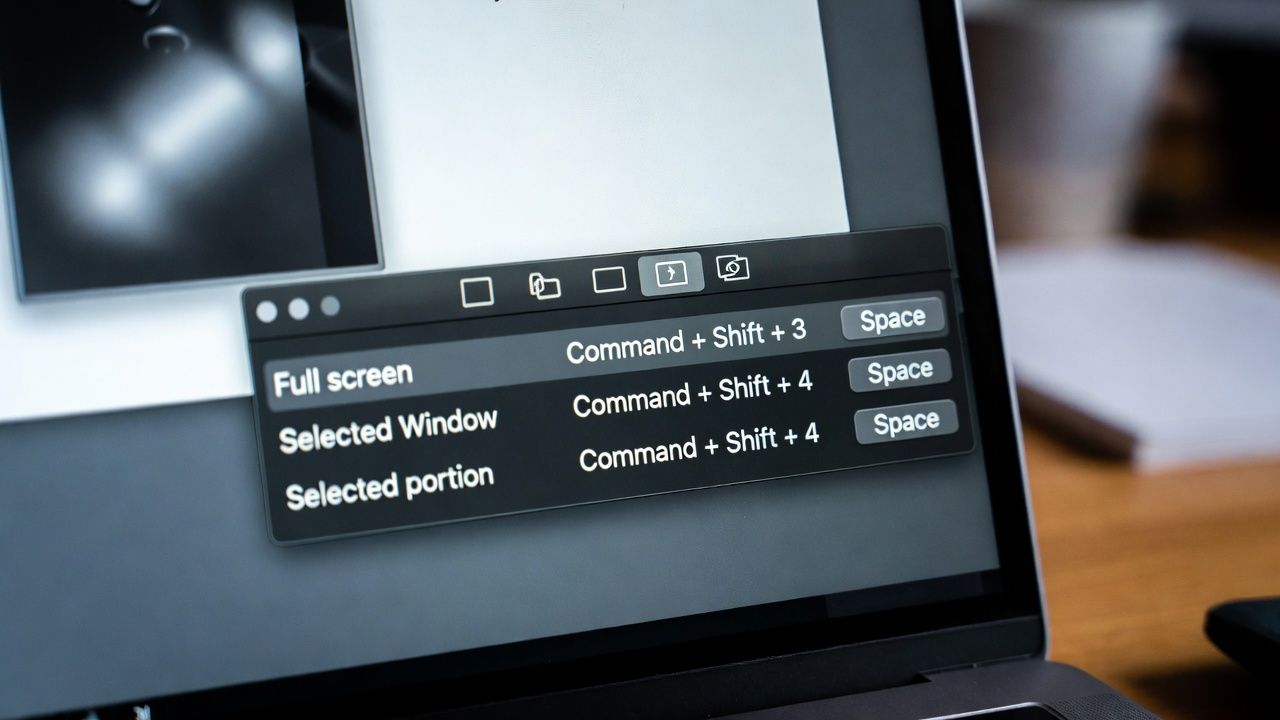
Mac users have had built-in screenshot capabilities for years, but 2026 brings a wider range of tools and workflows that make capturing and editing screen content faster and more versatile than ever. Screenshots are no longer just static images; they’re part of tutorials, troubleshooting guides, and creative projects. Choosing the right snipping tool can save time and elevate productivity.
The default macOS shortcuts remain the quickest way to grab a screen capture, yet many users now look for more advanced options. For those exploring the best snipping tool mac solutions, the landscape includes both free built-ins and premium apps like Movavi Screen Recorder. The key is knowing when to stick with Apple’s native features and when to upgrade for editing, annotation, or video capture.
Built-in macOS Screenshot Tools
Apple’s screenshot system is still the foundation for most users. Pressing Command + Shift + 4 lets you select a portion of the screen, while Command + Shift + 5 opens a control panel with options for full-screen, window, or custom area captures. You can also record video clips directly from this panel, making it a versatile tool for quick tutorials.
- Pros: Free, fast, integrated into macOS, no installation required.
- Cons: Limited editing features, annotations require Preview or third-party apps.
For everyday documentation, these shortcuts are more than enough. They’re reliable, lightweight, and perfect for users who just need a quick capture without extra steps.
Preview and Markup
Preview, the default image viewer, doubles as a basic editor. After taking a screenshot, you can open it in Preview to crop, resize, or annotate. The Markup toolbar adds arrows, text, and highlights, which is useful for tutorials or pointing out specific details.
- Pros: Already installed, simple annotation tools, easy to use.
- Cons: No advanced editing, limited export options.
Preview is best for users who occasionally need to add notes or highlights without investing in a dedicated snipping app.
Third-Party Snipping Tools
For professionals, educators, or anyone creating polished tutorials, third-party apps offer more power. Movavi Screen Recorder, Skitch, and CleanShot X are among the most popular in 2026.
Movavi Screen Recorder
Movavi stands out for combining screenshot and video capture in one streamlined interface. You can record your screen with audio, annotate in real time, and export in multiple formats. It’s ideal for creating training materials or troubleshooting guides.
- Pros: Video and screenshot capture, advanced editing, user-friendly interface.
- Cons: Paid subscription, may be more than casual users need.
Skitch
Skitch, part of the Evernote ecosystem, focuses on quick annotation. It’s perfect for adding arrows, shapes, and text to screenshots before sharing them.
- Pros: Fast annotation, integrates with Evernote, free.
- Cons: Limited editing beyond markup, less suited for video capture.
CleanShot X
CleanShot X is a premium app designed for power users. It offers cloud storage, customizable shortcuts, and advanced annotation tools. Its ability to hide desktop icons and capture scrolling content makes it a favorite among professionals.
- Pros: Feature-rich, polished interface, workflow enhancements.
- Cons: Paid license, may feel overwhelming for beginners.
Tips for Screenshot Productivity
Regardless of which tool you choose, a few habits can make your workflow smoother:
- Memorize shortcuts for speed. Command + Shift + 4 and 5 cover most needs.
- Use Preview or Markup for quick edits without installing extra apps.
- For tutorials, record short clips instead of multiple screenshots.
- Organize captures in dedicated folders to avoid clutter.
- Consider cloud-based tools like CleanShot X if you share screenshots frequently.
When to Upgrade
If your work involves teaching, troubleshooting, or content creation, upgrading to a dedicated snipping app makes sense. Movavi Screen Recorder and CleanShot X provide advanced features that save time in the long run. Casual users, however, can stick with macOS defaults and Preview without missing much. For professionals, these choices reflect the changing landscape of IT support, where software tools increasingly shape productivity and workflow efficiency.
Conclusion
Mac users in 2026 have more choices than ever for capturing and editing screen content. The built-in shortcuts remain the fastest option, while apps like Movavi Screen Recorder and CleanShot X deliver professional-grade features. Choosing the right snipping tool mac solution depends on your workflow. For quick notes, stick with Apple’s defaults. For polished tutorials or advanced editing, investing in a third-party app will pay off in productivity.
